How Is a Label Design File Prepared for Print?
The essentials of preparing a label design file for print (prepress): vector vs bitmap, resolution, CMYK and spot colours, bleed, safe area, converting fonts to outlines and a delivery checklist.
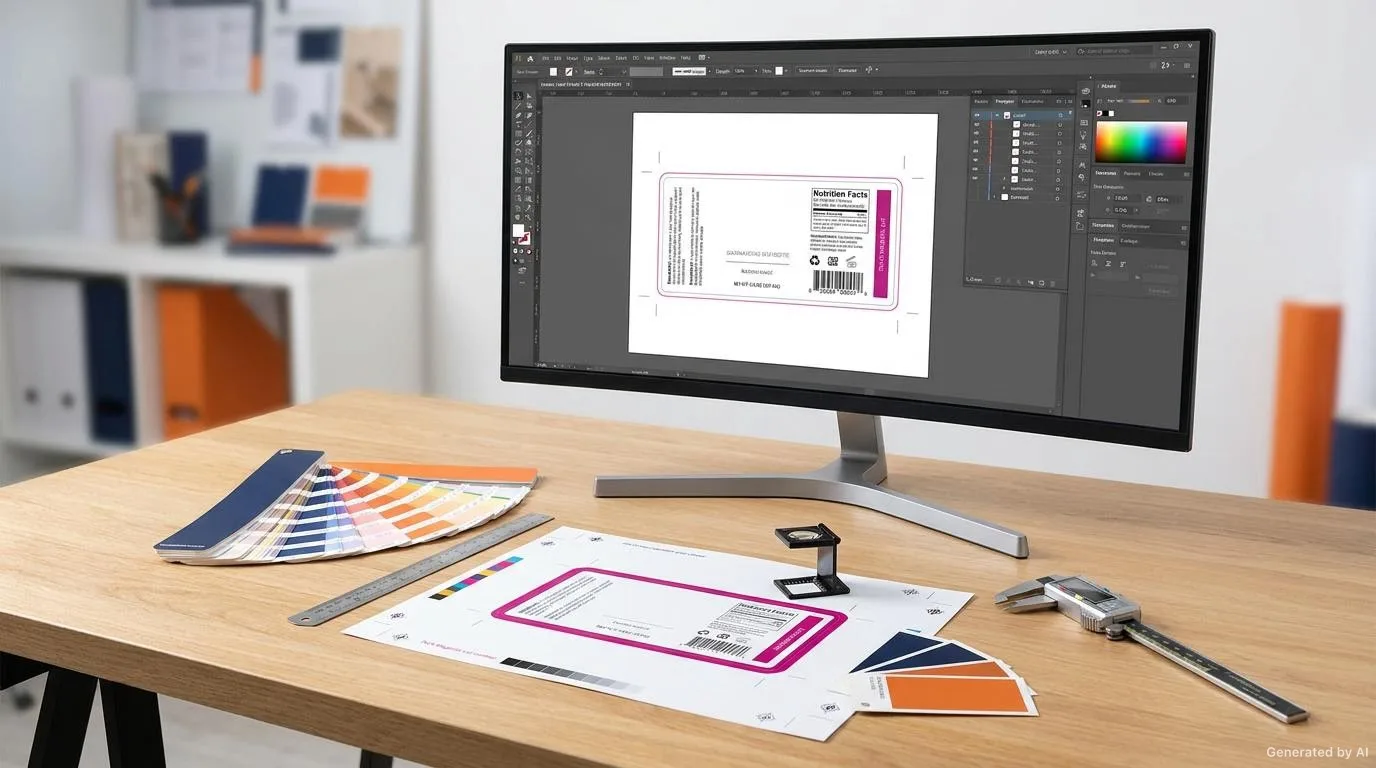
Even if a label design looks flawless on screen, the result can come out different if the file sent to print is not prepared correctly. Colours can shift, fine lines can disappear, the cut can run in the wrong place, or a barcode can become unreadable. Preparing a label design file for print — commonly called prepress — is the process of translating a design into the technical language a printing house understands. In this guide we cover the fundamentals of file preparation, from the vector–bitmap distinction and resolution to bleed, spot colours, converting fonts to outlines and a pre-delivery checklist, in a technical and practical way.
What Is Prepress and Why Does It Matter?
A design that looks beautiful in the editing software and the file that reaches the printing machine are not the same thing. A designer works on screen with RGB colours, pixels and linked images, while the press usually works with CMYK inks, vector-based drawings and a fixed physical size. Prepress is the work of closing the gap between these two worlds.
When files are sent without preparation, problems often appear only after production has started. By then a plate may already be made, the machine adjusted, or some material consumed. Checking the file before it goes into production is therefore the most efficient step, both in time and in cost. Good preparation does not slow a job down; on the contrary, it removes the need to stop and correct during printing.
Vector and Bitmap: Which Content in Which Format?
Graphic files are stored in two fundamental ways: vector and bitmap (pixel). Vector graphics are defined by mathematical curves and keep crisp edges no matter how much they are enlarged. Elements that need sharpness — logo, text, barcode, fine lines and the cut line — should be vector. Bitmap images, in contrast, are made of pixels and become blurry when scaled beyond a certain resolution; photographs and textured visuals are stored this way.
The most common mix-up is using a small bitmap logo without converting it to vector. Such a logo causes no problem at the design stage, but when enlarged its edges look jagged and blurry. Likewise, low-resolution images captured as screenshots or downloaded from the internet give unacceptable results in print.
- Should be vector: logo, text, barcode, QR code, cut line, fine lines, graphic icons.
- Should be bitmap: photographs, textures, complex images with gradients, pictorial backgrounds.
- Hybrid approach: vector elements and a photograph can live in the same file, but each must meet its own requirements.
Resolution and DPI: The Limit of Print Quality
The key measure of a bitmap image's print quality is resolution. On screen, resolution is usually expressed in pixels; in print, in dots per inch (DPI). The way to tell whether an image is suitable for print is to place it at the intended physical size and look at its effective resolution.
What Is Effective Resolution?
Effective resolution is the real resolution that falls on the physical area an image occupies in print. Placing a large file into a small area raises the resolution; enlarging the same file lowers it. Looking only at a file's pixel dimensions is therefore not enough; the size at which the image is used on the label must also be taken into account.
For continuous-tone images such as photographs, the common expectation is around 300 DPI effective resolution at print size. This value is not a strict rule, however; it can vary with the printing method, the intended size and the viewing distance. A large label viewed from a distance may need less, while a small label held in the hand may need more. The most reliable approach is to confirm the expectation with your printer.
Colour Space: CMYK, RGB and Spot Colours
Design works with RGB on screens, while print works with CMYK. Since the two colour spaces do not cover the same gamut, not every tone seen on screen comes out exactly in print. Bright, neon and metallic tones in particular may fall outside the CMYK gamut. The file sent to print should therefore be prepared in the colour space appropriate to the target printing method.
For critical brand colours, using a spot (pre-mixed) colour can give a more stable result than a four-colour process, because the tone is defined by a fixed reference. Using a spot colour, however, means an additional printing pass and must be included in the production plan from the start. If you are working on a transparent material, the white underprint that goes behind the colours must also be considered together with the colour decisions. We cover colour choice and perception in detail in our article on colour and readability in label printing.
Bleed, Safe Area and the Cut Line
A label has physical borders, and a design that extends beyond these borders is trimmed after printing. Because small shifts can occur during cutting, backgrounds and background images must extend slightly beyond the cut line; this is called bleed. Bleed prevents the thin white lines and shifts that can appear when the cut is made exactly on the border.
The safe area is the zone slightly inside the cut line where important content (text, logo, barcode) should be placed. Text placed right next to the cut line can be cropped with a slight shift. In label design the cut line is usually defined on a separate layer as a technical line (the die-cut line) and is not printed. For the printer to read this line correctly, its colour, position and type must be clear.
White Underprint and Background Control
On clear film, metallised or coloured backgrounds, the visible colours of the artwork mix with the background beneath them. In this case an opaque white layer is added behind the artwork; this is called white underprint. White underprint makes colours appear vivid and accurate; when it is missing or wrongly defined, colours look paler and shifted than expected.
White underprint is usually defined as a separate layer or a separate colour, and which areas should be white and which should not must be clearly shown. The white layer has to align exactly with the artwork above it; a small shift creates colour spill or gaps at the edges. On transparent labels, the background plan is an inseparable part of colour approval.
Fonts and Line Weights: Outlines, Minimum Point Size and Detail
Fonts used in a print file must either be embedded or converted to outlines (curves). If a font is not installed on the receiving system, the text can be swapped for another font, leading to shifted lines, different letter widths and a broken layout. Converting to outlines removes this risk by turning letters into graphic objects.
Very small text and thin lines are prone to disappearing or filling in during printing. The smallest text on the label must remain readable, and in reversed (knockout) text the thin openings can close up with ink. Likewise, very thin lines can fall below the printable limit. The exact limits depend on the printing method (digital, flexo, offset) and the material, so minimum point size and line weight should be agreed with the printer.
Barcodes and QR Codes: Placement and Quiet Zone
Barcodes and QR codes are the most technical elements of a design: they must not only look right, but also be read reliably by a scanning device. The blank area that must be left around a barcode (the quiet zone) has to be preserved, and no graphic, line or background texture should run into the barcode. When a barcode is reduced in size, care must be taken that the bar widths do not fall below an acceptable limit.
Producing barcodes and QR codes directly as vectors keeps their edges sharp. A barcode produced as a bitmap becomes blurry when enlarged and its read rate drops. You can find more on barcode placement and readability in our article on barcode labels: correct printing and readability.
Embedding Images, File Formats and Layer Organisation
When a design file is sent to another computer and linked images cannot be found, the file opens incomplete. The way to prevent this is to embed the images into the file, or to package the images and fonts before delivery. Embedding increases the file size but gives portability on its own.
The formats most often accepted for print are PDF, AI and EPS. Among them, a PDF prepared specifically for print (created with a preset) is a safe delivery format, as it carries embedded fonts and flattened images. The PDF must be exported with the correct settings, however; a PDF produced for on-screen sharing may not be suitable for print.
- PDF: a common and safe delivery format with embedded fonts and flattened images.
- AI: vector-based; make sure images are embedded, not linked.
- EPS: a widespread but older, vector-oriented format; it may not support some features.
- Layer organisation: dimensions, cut line, white underprint and bleed should be kept on separate, named layers.
File and Parameter Check Table
The following table summarises the parameters most often checked before sending a job to print. Many of these values can vary with the job and the printing method; the table offers a general framework and exact values should be confirmed with the printer.
| Parameter | What to check | Why it matters |
|---|---|---|
| Vector / bitmap | Are logo, text and barcode vector? | Keeps edges sharp when enlarged. |
| Resolution | Effective DPI of bitmap images | Prevents blurry printing. |
| Colour space | CMYK, spot and RGB separation | Prevents unwanted tone shifts. |
| Bleed | Do backgrounds extend past the edges? | Avoids a white line at the edge. |
| Safe area | Is critical content far enough from the cut? | Keeps text and logo from being cropped. |
| White underprint | Is it defined on transparent stock? | Makes colours correct and vivid. |
| Fonts | Outlined or embedded? | Keeps the text layout from shifting. |
| Line and point size | Minimum weight and point-size limit | Keeps fine elements from disappearing. |
| Barcode / QR | Quiet zone and vector production | Readability by a scanning device. |
| Images | Embedded or linked? | Prevents the file from opening incomplete. |
Pre-Delivery Checklist and Proofing
Running the file through the checklist below before sending it to the printer prevents most of the problems that come up most often. The proofing step at the end is the last safeguard before production begins.
- Are the correct size, bleed and safe area set?
- Are all fonts embedded or converted to outlines?
- Are all images embedded and sufficient in resolution at the target size?
- Are the colours in a space suited to the target printing method?
- Are spot colours and white underprint on the right layers?
- Is the cut line (die-cut) defined separately and correctly?
- Are the barcode and QR code vector, with their quiet zones preserved?
- Are the layers and file naming clear?
- Was the file exported as PDF, AI or EPS with the correct preset?
- Was a proof taken for a final check?
A proof shows how the file will look on the real material and with the real printing method. A job approved on screen can look different in print; the proof catches this difference before production begins. The approved proof is also used later as a reference for repeat orders.
Common Prepress Mistakes
The most frequently repeated file-preparation mistakes usually stem from small oversights, but their consequences can be large.
- Not allowing for bleed, or allowing too little.
- Enlarging a small bitmap logo without converting it to vector.
- Forgetting to embed fonts or convert them to outlines.
- Leaving images linked and sending an incomplete file.
- Mixing CMYK and RGB colours in the same file.
- Not defining white underprint on transparent stock.
- Filling a barcode's quiet zone with graphics.
- Defining the cut line on the wrong layer or on the print layer.
- Using very small point sizes or very thin lines.
- Sending a PDF made for on-screen sharing to print.
A Realistic Designer–Printer Scenario
A small food brand has a clear film label designed for its new product. The designer prepares the work on screen and sends it to the brand for approval; the brand approves it visually. When the file reaches the printer, two problems appear: the designer did not define a white underprint layer on the clear film, and used a low-resolution image for the product photo. With no white underprint, the colours mix with the product colour behind the clear film, and the photo looks blurry in print.
Before starting production, the printer tells the designer what is wrong: the white underprint layer is added for the intended areas, a higher-resolution version of the photo is requested, and the file is proofed again. The issue is solved without consuming plates or material. This example shows that visual approval is different from technical approval, and that a prepress check closes exactly that gap.
Conclusion and Actionable Recommendations
Preparing a label design file for print is not the last step of design but the first step of successful production. Keeping vector elements as vector, checking bitmap image resolution at the target size, working in a colour space suited to the target printing method, defining bleed and the safe area, delivering fonts embedded or outlined, and preserving barcode placement are the file's safeguards. For other design-related problems, see our articles on 10 common mistakes in label design, on custom-size label design and application for special-size decisions, and on colour and readability in label printing for the colour–legibility balance. To see our material and application options, visit the products page.
A Quote Tailored to You
If you want your label file prepared for print without problems, simply share the intended size, material, usage conditions and the design file you have. Our team will review your file from a prepress perspective, point out the changes needed and build a plan suited to print. Click here to request a quote.
Frequently Asked Questions
What exactly is prepress?
Prepress is the process of turning a design into a technical file the printing machine understands: the correct colour space, sufficient resolution, bleed, embedded fonts and images, and a defined cut line are all part of it.
Which format should the file I send to print be in?
The most common and safe option is a PDF prepared for print (created with a preset) with embedded fonts. AI and EPS can also be used, but you should make sure images are embedded, not linked.
What should I do if my logo is a bitmap?
A bitmap logo looks fine on screen but becomes blurry when enlarged. Elements such as the logo and text should use a vector version or be converted to vector.
Why do colours look pale on a transparent label?
On clear film and metallised backgrounds, if white underprint is not defined, the top colours mix with the background beneath. Adding a white underprint layer makes the colours correct and vivid.
Why is bleed needed?
To prevent a white line appearing at the edges from small shifts during cutting, backgrounds and background images are extended slightly beyond the cut line.
Want to Determine the Right Label for Your Product?
Share your usage area and needs with us; let's evaluate suitable options together.